
About V60
About V60 firmware upgrade
V60 android projector support OTA online update Android firmware. Every time we update the firmware, after uploading to the cloud server, V60 will prompt to update, Operation video guide: https://youtu.be/9YDGh7rzTXc
It can also be upgraded via U disk
Step:
- Prepare a USB drive smaller than 32GB.
- You can click the icon below to download the firmware of U90 . Do not change the name of the file, otherwise the projector will not recognize it.
- After downloading the firmware, copy it to the root directory of the USB drive. Be careful not to put the firmware in the folder.
- Insert the USB drive into the projector’s USB port.
- Then connect the power cord of the projector.
- Press and hold the power on key until the upgrade progress bar pops up on the screen, and wait for the automatic upgrade.
Note: the upgrade process must not be interrupted.
Firmware upgrade operation guide video:https://youtu.be/1q7NQeOOm3g
Firmware download link:
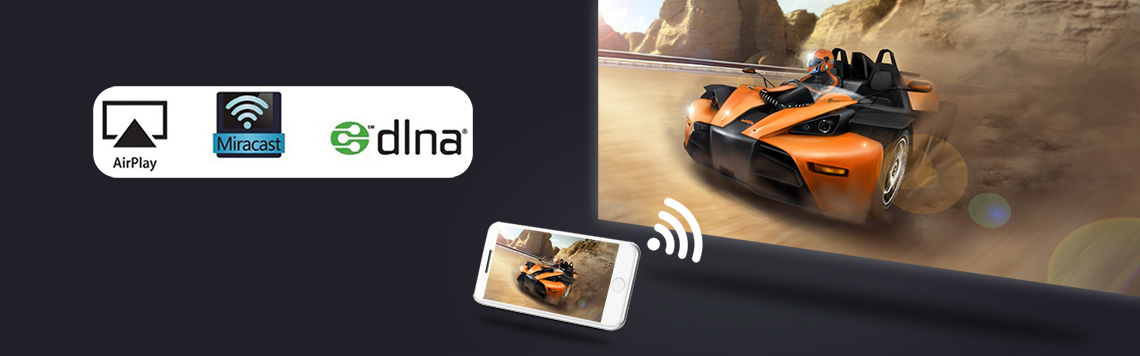
About V90 Wireless screen projection function
wifi-display function, the projector displays the image and sound of the mobile phone screen through the mirroring function of the smartphone. This is not achieved using the Bluetooth function. It is achieved through the screen mirroring function that comes with the phone.
- iOS smartphone realizes screen mirroring via projector’s “AirPlay” app
Operation instruction video connection: https://youtu.be/T2HCDpscrfU
- Android smartphones realize screen mirroring via projector’s “Miracast” app
Operation instruction video connection: https://youtu.be/OuPAKIubni4
Note: Not all Android smartphones support the screen mirroring function. For smartphones that support screen mirroring, there are options similar to this in the “Settings” or “More Functions” options of the smartphone, for example: “Screen mirroing”, “Wifi-display”, “multi-screen”, “screen projection”, “play to”, “media output”, etc.
If the projector’s pre-installed screen mirroring app is not compatible with your Android smartphone, you can also download and install Airscreen, happycast and other apps that support wifi-display on the projector.
Tips:
Some video apps with copyright protection cannot support wireless projection from other devices to the projector. For example, Netflix, iTunes Movie, Google Movie, Amazon Prime do not support this function on some smartphone and computers. All Android system projectors on the market are the same.

V60 Projector Operation Guidance Video
- How to power on the Vevshao V60 projector using the remote control?
Operation instruction video connection: https://youtu.be/KeV3pGrBfYA
- How to connect the Vevshao V60 projector to WiFi?
Operation instruction video connection: https://youtu.be/sOlDMu_VMQc
- How to connect the Vevshao V60 projector to a Bluetooth device?
Operation instruction video connection: https://youtu.be/OeTke2dw514
- How to set the Bluetooth speaker mode on the Vevshao V60 projector?
Operation instruction video connection: https://youtu.be/trjCIGOmllE
- How to set the autofocus function on the Vevshao V60 projector (it’s enabled by default on new models)?
Operation instruction video connection: https://youtu.be/mgqf1-ApARQ
- Using the F+ and F- buttons on the remote control to assist focus on the Vevshao V60 projector?
Operation instruction video connection: https://youtu.be/jIMeggForjE
- How to adjust the autofocus settings on the Vevshao V60 projector?
Operation instruction video connection: https://youtu.be/MtJDPen5YKs
- How to enable automatic keystone correction on the Vevshao V60 projector (it’s enabled by default on new models)?
Operation instruction video connection: https://youtu.be/dKTebJm6lvc
- How to set manual corner keystone correction on the Vevshao V60 projector?
Operation instruction video connection: https://youtu.be/n1k-sKeawaw
- How to scale the screen on the Vevshao V60 projector?
Operation instruction video connection: https://youtu.be/B1uT2ghRET0
- How to operate V60 to upgrade via network OTA?
Operation instruction video connection: https://youtu.be/9YDGh7rzTXc
- How to operate V60 to update firmware via U disk?
Operation instruction video connection: https://youtu.be/1q7NQeOOm3g
- How to change the system language on the Vevshao V60 projector?
Operation instruction video connection: https://youtu.be/GT6NqeKmRDo
- How to view device information on the Vevshao V60 projector?
Operation instruction video connection: https://youtu.be/svu0-FKxxZE
- How to project the Vevshao V60 projector via a USB cable?
Operation instruction video connection: https://youtu.be/wF8aQUj8hSE
- How to switch signal sources on the Vevshao V60 projector?
Operation instruction video connection: https://youtu.be/3ueLL8uVN78
- How to change the default signal source on the Vevshao V60 projector?
Operation instruction video connection: https://youtu.be/mplm3anRaBI
- How to set the projection mode on the Vevshao V60 projector?
Operation instruction video connection: https://youtu.be/KZgTQk_FyQQ
- How to install software via a USB flash drive on the Vevshao V60 projector?
Operation instruction video connection: https://youtu.be/0OWtN9XJjDI
- How to view files on a USB flash drive on the Vevshao V60 projector?
Operation instruction video connection: https://youtu.be/7-L6JyOCDEg
- How to restore the Vevshao V60 projector to factory settings?
Operation instruction video connection: https://youtu.be/JD26EI_yDds - How to solve Fire TV stick 4K connected to the projector to play movies no sound?
Turn off Dolby in the setting sound of Fire TV stick 4K.
Step:”setting”—-“display&Sound”—“Audio”—“Dolby digital output”—“Dolby digital plus OFF”, Turn off Dolby,Do it a few times,Confirm whether Dolby is successfully turned off.
Tips: Some sources can work normally without turning off Dolby and setting them to automatic mode. If there is still no sound in automatic mode, you must turn off Dolby.
Operation instruction video connection: https://youtu.be/2S77xzLHC84