
About A16
About A16 firmware upgrade
A16 android projector support OTA online update Android firmware. Every time we update the firmware, after uploading to the cloud server, A16 will prompt to update, Operation video guide: https://youtu.be/IOi9Cyb9sbY
It can also be upgraded via U disk
Step:
- Prepare a USB drive smaller than 32GB.
- You can click the icon below to download the firmware of A16 . Do not change the name of the file, otherwise the projector will not recognize it.
- After downloading the firmware, copy it to the root directory of the USB drive. Be careful not to put the firmware in the folder.
- Insert the USB drive into the projector’s USB port.
- Then connect the power cord of the projector.
- Press and hold the power on key until the upgrade progress bar pops up on the screen, and wait for the automatic upgrade.
Note: the upgrade process must not be interrupted.
Firmware upgrade operation guide video:https://youtu.be/0KmL96fyZ6s
Firmware download link: https://drive.google.com/drive/folders/1HGorFuKS6MHN9Z70m2Z0hs8Y0j7VLI-R?usp=sharing
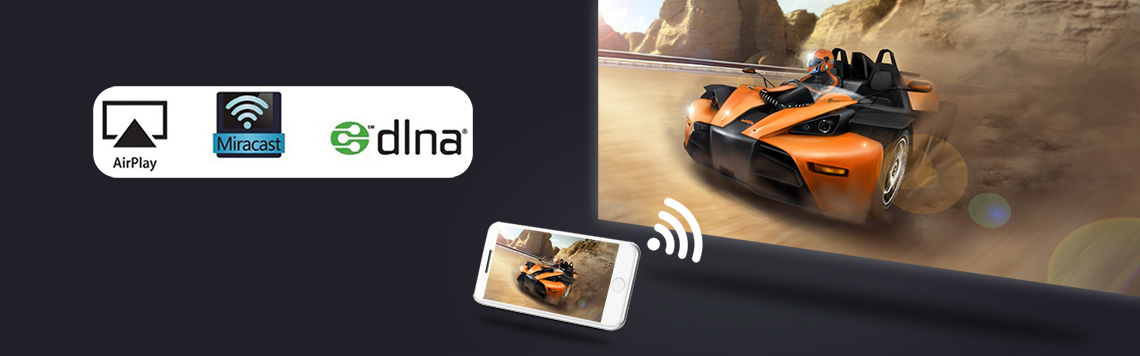
About A16 Wireless screen projection function
wifi-display function, the projector displays the image and sound of the mobile phone screen through the mirroring function of the smartphone. This is not achieved using the Bluetooth function. It is achieved through the screen mirroring function that comes with the phone.
- ios smartphone realizes screen mirroring via projector’s “IOScast” app
Operation instruction video connection:https://youtu.be/YG-itFQvIAY
- Android smartphones realize screen mirroring via projector’s “Miracast” app
Operation instruction video connection:https://youtu.be/xJRxZwQQ1SA
Note: Not all Android smartphones support the screen mirroring function. For smartphones that support screen mirroring, there are options similar to this in the “Settings” or “More Functions” options of the smartphone, for example: “Screen mirroing”, “Wifi-display”, “multi-screen”, “screen projection”, “play to”, “media output”, etc.
If the projector’s pre-installed screen mirroring app is not compatible with your Android smartphone, you can also download and install Airscreen, happycast and other apps that support wifi-display on the projector.
Tips:
Some video apps with copyright protection cannot support wireless projection from other devices to the projector. For example, Netflix, iTunes Movie, Google Movie, Amazon Prime do not support this function on some smartphone and computers. All Android system projectors on the market are the same.

A16 Projector Operation Guidance Video
- How to use the A16 projector (how to turn it on)?
Operation instruction video connection:https://youtu.be/FPkOoNya1R4
- How to connect A16 projector to WiFi?
Operation instruction video connection:https://youtu.be/UviKSevPB3Q
- How to connect A16 projector to other Bluetooth devices
Operation instruction video connection:https://youtu.be/RRBa_7oO-V4
- How to check the system version information of A16 projector?
Operation instruction video connection:https://youtu.be/4AwrKWj3pKg
- How to change the system language of A16?
Operation instruction video connection:https://youtu.be/Yvx4-0REPTM
- How to set the default signal source of A16 after booting, for example to HDMI by default?
Operation instruction video connection:https://youtu.be/fkuqDir1ETw
- How to operate A16 to restore factory settings?
Operation instruction video connection:https://youtu.be/T130Wy_FTAw
- How to set A16 to flip the screen image during ceiling mount or rear projection?
Operation instruction video connection:https://youtu.be/xm0t7BJrF3k
- How to adjust the keystone correction of A16(Includes corner keystone)?
Operation instruction video connection:https://youtu.be/aePusCOLtrs
Operation instruction video connection:https://youtu.be/gDyNC_V-bpQ
- How to adjust A16 basic electronic digital zoom?
Operation instruction video connection: https://youtu.be/z8qsZxeEats
- How to operate A16 to upgrade via network OTA?
Operation instruction video connection:https://youtu.be/IOi9Cyb9sbY
- How to operate A16 to update firmware via U disk?
Operation instruction video connection: https://youtu.be/0KmL96fyZ6s
- How to turn on auto focus on A16?
Operation instruction video connection:https://youtu.be/gbvvZCxJ_K8
- How to enable automatic power on for A16?
Operation instruction video connection:https://youtu.be/Xz_XfUsD_0I
- How to view A16 USB files?
Operation instruction video connection:https://youtu.be/eCVqZd3aDB0
- How to install software via USB in A16?
Operation instruction video connection:https://youtu.be/vGoq1OWu2XQ
- How to set Bluetooth speaker mode for Vevshao CHANGE A16 projector?
Operation instruction video connection: https://youtu.be/yIEUw1qTyCM
- How to turn on automatic obstacle avoidance in A16?
Operation instruction video connection: https://youtu.be/_xAeplZcTVo
- How to turn on HDMI ARC function in A16?
Operation instruction video connection:https://youtu.be/YL8mZH3oqLM

Vevshao A16 Projector Maintenance Guide
How to solve the problem of remote control not working?
1.1 The projector comes standard with a 2.4G wireless remote control. If the remote control does not work, you need to re-operate the remote control to pair with the projector.The operation method is to take out the battery of the remote control, start the projector, wait for the projector to turn on, then move the remote control close to the projector, and then install the battery of the remote control, and the remote control will re-pair with the projector.
1.2 If the pairing is unsuccessful, replace a remote control and try again.
1.3 If the replacement of the remote control still fails, it may be that the cable between the remote control receiver and the motherboard is loose. Reconnect the cable between the receiver and the motherboard.
1.4If there is still a problem, there may be a problem with the remote control receiving circuit board or the main board. Just replace the corresponding parts. There is a disassembly video guide below.
The lens of the vevshao A16 projector has no light coming out, and the LED does not work, how can I solve it?
Fault phenomenon:
After the projector presses the power button, you can hear that the fan inside the projector is working normally, but there is no light coming out of the lens at all, maybe the LED is not working.
First, disassemble the projector to check whether the cables on the power board are connected properly. If the cables on the power board are connected normally and there is no looseness, the projector still does not work, and a new power board needs to be replaced. If it is still not normal, you need to replace the LED. If the lens still has no light after replacing the LED, you need to replace the motherboard.
Usually replace the power board projector is normal. LED damage is generally caused by high voltage breakdown of the projector’s LED due to lightning strikes or unstable household power grids.
- Replace the power board of vevshao A16 series projector?
Fault phenomenon:
The power indicator on the top cover of the projector is not on, or there is no light coming out from the inside of the projector lens (that is, the LED does not work), it may be a problem with the power board, and the power board needs to be replaced
Operation instruction video connection: https://youtu.be/lQpkt2-vvPY
Replace vevshao A16 series projector LED?
Operation instruction video connection: https://youtu.be/w3Ul1aluAzcReplace the motherboard of vevshao A16 projector?
Operation instruction video connection: https://youtu.be/-46Ljmdzbs8Replace the focus motor of vevshao A16 series projector?
Fault phenomenon:
If you press and hold the “F+” and “F-” buttons of the remote control, the projector lens cannot move back and forth, that is, it cannot be focused. It may be that the focusing motor is not working, or the circuit board connected to the focusing motor is not working. Replace both parts.
Operation instruction video connection: https://youtu.be/5XhxLQ5wAf4A few minutes after the projector is turned on, a black shadow appears in the middle of the screen and gradually expands. This may be because the LCD cooling fan inside the projector is not working.
How to replace the LCD fan of Vevshao A16 projector
Operation instruction video connection: https://youtu.be/ct9A2wmkI38
Replace A16 cooling copper fan
Operation instruction video connection: https://youtu.be/P6Y5QwIWhwI
How to replace the LCD of the vevshao A16 projector?
Fault phenomenon
If the picture image is abnormal, there are colored streaks, or there are cracks, black blocks that will not recover after the projector cools down, etc., the LCD may be damaged and the LCD needs to be replaced.
Operation instruction video connection: https://youtu.be/w3Ul1aluAzc
What should I do if the remote control does not respond? How to replace theremote control receiver inside the vevshao A16 series projector?
Solution:Turn on the projector first, then remove and re-install the batteries of the remote control.
If it still doesn’t work, please replace the remote
If replacing the remote control does not work, please replace the remote control receiver inside the projector
Replacing the remote control receiver inside the projector, operation guide video URL: https://youtu.be/p0lMJ-rODIk
How to replace Vevshao CHANGE A16 projector disassembly speaker
Operation instruction video connection:https://youtu.be/Lkv1My4jYzI
- How to replace the lens of Vevshao CHANGE A16 projector after disassembly
Operation instruction video connection:https://youtu.be/3ETRsprEitE - Vevshao CHANGE A16 Projector All Parts Disassembly Video
Operation instruction video connection: https://youtu.be/37iFmDJefnI