
حوالي 70 بيزو
حول تحديث البرنامج الثابت لنظام التشغيل أندرويد P70
سنقوم بانتظام بتحسين وصيانة البرامج الثابتة لنظام أندرويد. ندعم التحديث عبر الإنترنت (OTA) للبرامج الثابتة لنظام أندرويد.
دليل فيديو للتشغيل: https://youtu.be/LgxDm_96fFg
ملاحظة: إذا كان بالإمكان تشغيل جهاز العرض بشكل طبيعي، يرجى استخدام التحديث عبر الإنترنت. لا تقم بتحديث البرنامج الثابت باستخدام محرك أقراص USB محمول. إذا واجهت أي مشاكل، يرجى إعادة ضبط الإعدادات إلى إعدادات المصنع أولاً. إذا كان لا بد من تحديث البرنامج الثابت، يرجى الاتصال بخدمة العملاء وتزويدها برقم جهاز العرض ورقم إصدار Android. إصدار النظام، نظرًا لتغير المكونات الإلكترونية للوحات الأم الخاصة بجهاز العرض التي تم إنتاجها في دفعات مختلفة، وتوافق البرامج الثابتة المختلفة مع لوحات أم مختلفة. إذا تم استخدام برنامج ثابت غير صحيح، فلن يتمكن جهاز العرض من التشغيل. يرجى توخي الحذر.
إذا كانت هناك مشكلة في البرنامج الثابت لنظام أندرويد الخاص بجهاز العرض ولم يكن بالإمكان تحديثه عبر الإنترنت، فيمكنك تحديثه باستخدام محرك أقراص USB محمول
إرشادات التشغيل:
- انقر على الرمز أدناه لتنزيل البرنامج الثابت لنظام التشغيل أندرويد وقم بفك ضغطه.
- قم بفك ضغط ملف البرنامج الثابت في المجلد الجذر لقرص USB. (ملاحظة: لا تضعه في مجلدات أخرى. يجب أن يكون تنسيق قرص USB المحمول هو FAT32)
- ثم أدخل قرص USB في منفذ USB الخاص بجهاز العرض، ثم قم بتوصيل سلك الطاقة الخاص بجهاز العرض، وشغّل مفتاح الطاقة الموجود في الجزء الخلفي من جهاز العرض، واضغط مع الاستمرار على زر الطاقة لبدء عملية التحديث، وسيقوم جهاز العرض بالتحديث تلقائيًا.
- انتظر حتى يتم إيقاف تشغيل جهاز العرض تلقائيًّا، ثم قم بتحميل جميع التطبيقات بعد تشغيله تلقائيًّا، أي بعد حوالي 20 دقيقة. يمكن استخدامه بشكل طبيعي.
ملاحظة: لا تقم بفصل التيار الكهربائي عن جهاز العرض أثناء عملية الترقية. وإلا فإن ذلك سيؤدي إلى حدوث خلل في الجهاز وبطء في بدء التشغيل، مما يستلزم إجراء عملية ترقية من جديد.
فيديو دليل المستخدم الخاص بتحديث البرنامج الثابت P70: https://youtu.be/vNgJfPFhCcc
تنزيل البرنامج الثابت لنظام أندرويد P70:https://drive.google.com/drive/folders/1qzKNEl6pebebl07zswS5S2SohzMHaBao?usp=drive_link
إصدار البرنامج الثابت: C.6BY20230906en2
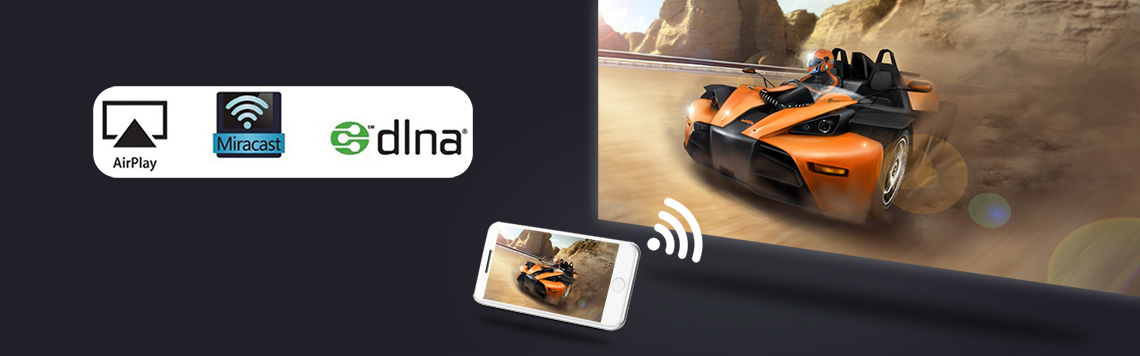
حول وظيفة العرض اللاسلكي للشاشة في P70
- وظيفة عرض الواي فاي: يعرض جهاز العرض الصورة والصوت من شاشة الهاتف المحمول من خلال وظيفة "انعكاس الشاشة" الموجودة في الهاتف الذكي. ولا يتم ذلك باستخدام وظيفة البلوتوث، بل من خلال وظيفة "انعكاس الشاشة" المدمجة في الهاتف.
1.1 هاتف ذكي يعمل بنظام iOS تتيح عرض الشاشة عبر وظيفة AirPlay.
فيديو إرشادات التشغيل: https://youtu.be/56bxLEl2Mf81.2 الهواتف الذكية التي تعمل بنظام أندرويد تحقيق عرض الشاشة عبر وظيفة Miracast.
فيديو إرشادات التشغيل: https://youtu.be/aqAd00g6tI0ملاحظة: لا تدعم جميع هواتف أندرويد الذكية وظيفة “انعكاس الشاشة”. أما بالنسبة للهواتف الذكية التي تدعم هذه الوظيفة، فتتوفر خيارات مشابهة لها ضمن قسم “الإعدادات” أو “المزيد من الوظائف” في الهاتف، على سبيل المثال: “انعكاس الشاشة”، “عرض واي فاي”، “شاشات متعددة”، “عرض الشاشة”، “تشغيل إلى”، "إخراج الوسائط"، إلخ.
إذا كان تطبيق "انعكاس الشاشة" المثبت مسبقًا على جهاز العرض غير متوافق مع هاتفك الذكي الذي يعمل بنظام أندرويد، يمكنك توصيل الهاتف الذي يعمل بنظام Android وجهاز العرض بشبكة واي فاي واحدة، ثم الدخول إلى واجهة Eshare الخاصة بخيار AirPlay على الصفحة الرئيسية لجهاز العرض، وإدخال عنوان IP الظاهر على الشاشة في متصفح الهاتف، وتنزيل تطبيق Eshare وتثبيته، ثم إجراء انعكاس الشاشة عبر تطبيق Eshare.1.3 تشغيل عرض الواي فاي عبر تطبيق Eshare
إذا كانت وظيفة عرض الشاشة في جهاز العرض الخاص بك مزودة مسبقًا بتطبيق Eshare، ولم يتمكن هاتفك الذي يعمل بنظام Android من الاتصال بجهاز العرض، فيمكنك تثبيت تطبيق Eshare على هاتفك لعرض الشاشة. قم بتنزيل تطبيق Eshare المخصص وفقًا للفيديو
فيديو إرشادات التشغيل: https://youtu.be/R1NvkKRbQZE1.4 عرض عبر شبكة الواي فاي لأجهزة الكمبيوتر التي تعمل بنظام التشغيل ويندوز عبر تطبيق Esahre
دليل فيديو للتشغيل: https://youtu.be/47QnnUVT6hw1.4.4 قم بتوصيل جهاز الكمبيوتر الذي يعمل بنظام التشغيل ويندوز وجهاز العرض بشبكة واحدة
1.1.2 انقر على خيار “Airplay” في الصفحة الرئيسية لجهاز العرض للدخول إلى واجهة Eshare.
1.4.3 على جهاز الكمبيوتر الذي يعمل بنظام التشغيل ويندوز، افتح هذا الرابط باستخدام متصفح: http://cdn.sharemax.cn/app/EShareClient-STD.exe قم بتنزيل تطبيق Eshare وتثبيته على جهاز الكمبيوتر.
1.4.4 انقر على “EShareClient-STD” على الكمبيوتر، وسيظهر اسم جهاز العرض وعنوان IP الخاص به الموجود على نفس الشبكة، فاختاره، ثم انقر على "ابدأ" لإتمام العملية بنجاحنصائح:بعض تطبيقات الفيديو المحمية بحقوق النشر لا تدعم العرض اللاسلكي من أجهزة أخرى إلى جهاز العرض. على سبيل المثال، لا تدعم تطبيقات Netflix وiTunes Movie وGoogle Movie وAmazon Prime هذه الوظيفة على بعض الهواتف الذكية وأجهزة الكمبيوتر. وجميع أجهزة العرض التي تعمل بنظام أندرويد المتوفرة في السوق تعاني من نفس المشكلة.

- كيف يمكن ضبط نقطة التركيز التلقائي عندما تكون نقطة التركيز في جهاز العرض BYINTEK 70 غير واضحة؟
الخطوة:
1.1 انتقل إلى “الإعدادات”
1.2 ابحث عن ‘إعدادات Keystone’،,
1.3 ثم قم بتشغيل “التركيز التلقائي”
1.4 اضغط على مفتاح “القائمة” 6 مرات
1.5 حدد ‘التجديد’
1.6 اضغط على زر “يسار” أو “يمين”، ثم اضغط على “موافق” للتأكد من وضوح التركيز البؤري.
1.7 جرب عدة مرات حتى يصبح الضبط واضحًا
دليل فيديو للتشغيل:https://youtu.be/xByEkR22wnk - كيفية استخدام جهاز العرض BYINTEK P70 لمشاهدة الأفلام ثلاثية الأبعاد باستخدام النظارات ثلاثية الأبعاد، وكيفية تشغيل المحتوى ثلاثي الأبعاد؟
لاستخدام النظارات ثلاثية الأبعاد المزودة بمصراع DLP بشكل صحيح
لتشغيل الفيديو ثلاثي الأبعاد الصحيح، مثل الفيديو ثلاثي الأبعاد المُرتب بنظام SBS (جنبًا إلى جنب)، أو الفيديو ثلاثي الأبعاد المُرتب بنظام TNB (أعلى وأسفل).
استخدم MX Player لتشغيل ملفات ثلاثية الأبعاد الموجودة على قرص USB. يوجد ملف تجريبي ثلاثي الأبعاد في MX Player.
يدعم إدخال مصادر الفيديو ثلاثية الأبعاد عبر واجهة HDMI، ولكنه لا يدعم مصادر الفيديو ثلاثية الأبعاد من مقاطع الفيديو عبر الإنترنت.
بعد فتح الفيديو ثلاثي الأبعاد، اتبع التعليمات الواردة في الفيديو الموجود على الموقع الإلكتروني التالي. دليل الفيديو الإرشادي:https://youtu.be/kHANZqKQ65Iحول تقنية ثلاثية الأبعاد
قراءة قرص USB عبر واجهة USB، وتشغيل مقاطع الفيديو ثلاثية الأبعاد باستخدام مشغل MX، ودعم مقاطع الفيديو ثلاثية الأبعاد بنظام الغالق المتجاور والغالق العلوي والسفلي.
ومن بينها، يمكن لمقاطع الفيديو بتنسيقي H265 وAVS دعم دقة تصل إلى 4K/30 هرتز.
يمكن أن تدعم ملفات الفيديو بتنسيقات AVI وMP4 وغيرها دقة تصل إلى 1080p/60 هرتز، لكنها لا تدعم دقة 4K.
تدعم واجهة HDMI تشغيل أقراص Blu-ray DVD بتقنية ثلاثية الأبعاد، كما تدعم عرض الفيديو ثلاثي الأبعاد بنمط «جنبًا إلى جنب» و«أعلى وأسفل»
لا تدعم نسخة يوتيوب بدقة 1080p المثبتة مسبقًا على جهاز العرض التبديل إلى الوضع ثلاثي الأبعاد. - كيفية إعداد BYINTEK P70 كسماعة بلوتوث؟
دليل فيديو للتشغيل: https://youtu.be/Bzvux5kbqis - كيف يمكن ضبط لون (درجة حرارة اللون) صور BYINTEK P70؟
دليل فيديو للتشغيل: https://youtu.be/RE-AjMWH_h8 - كيف يمكن ضبط الزوم الإلكتروني في BYINTEK P70؟
دليل فيديو للتشغيل: https://youtu.be/ZOs6Vhnc64k - كيف يمكن ضبط تصحيح الانحراف الزاوي لجهاز العرض BYINTEK P70 عند العرض من الجانب؟
دليل فيديو للتشغيل: https://youtu.be/fpEIKlZhIC0 - كيف يمكن ضبط سطوع شاشة BYINTEK P70؟
دليل فيديو للتشغيل: https://youtu.be/QTbfZMoyF4Y - كيف يمكن ضبط شاشة الرسومات القابلة للطي BYINTEK P70؟
دليل فيديو للتشغيل: https://youtu.be/Mt20eXF_nSA - كيف يمكن ضبط جهاز BYINTEK P70 بحيث يدخل مباشرةً إلى قناة إشارة HDMI بعد التشغيل؟
دليل فيديو للتشغيل: https://youtu.be/EJ1KaUA9Kog - كيف يمكن إعادة ضبط جهاز العرض BYINTEK P70 Pro إلى إعدادات المصنع؟
دليل فيديو للتشغيل: https://youtu.be/n2gOckdiYu0 - كيف يمكن إيقاف تشغيل موسيقى التمهيد؟
دليل فيديو للتشغيل: https://youtu.be/Fk7VV_4ZmlE - كيف يمكن حل مشكلة عدم صدور صوت عند تشغيل الأفلام على جهاز Fire TV Stick 4K المتصل بجهاز العرض؟
قم بإيقاف تشغيل Dolby في إعدادات الصوت في جهاز Fire TV Stick 4K.
الخطوة: ”الإعدادات” — “الشاشة والصوت” — “الصوت” — “إخراج دولبي ديجيتال” — “إيقاف تشغيل دولبي ديجيتال بلس”، قم بإيقاف تشغيل دولبي، كرر هذه الخطوة عدة مرات، وتأكد من إيقاف تشغيل دولبي بنجاح.
نصائح: يمكن لبعض المصادر أن تعمل بشكل طبيعي دون إيقاف تشغيل Dolby وضبطها على الوضع التلقائي. إذا لم يصدر صوت في الوضع التلقائي، فيجب عليك إيقاف تشغيل Dolby.
دليل فيديو للتشغيل: https://youtu.be/2S77xzLHC84
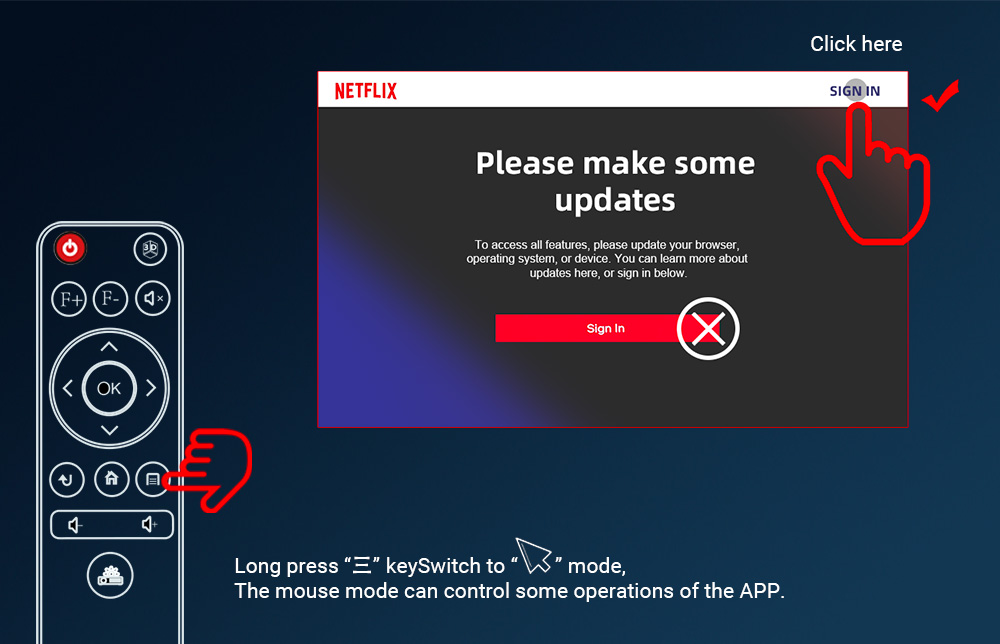
- يصعب التحكم في جهاز التحكم عن بُعد بالأشعة تحت الحمراء الأصلي عند استخدام تطبيقات مثل Netflix، فكيف يمكن حل هذه المشكلة؟
يتميز جهاز التحكم عن بُعد الخاص بنا بوظيفة الماوس؛ اضغط مطولاً على زر “三” للتبديل إلى وضع الماوس.
وإذا لم يعجبك ذلك، يُنصح باستخدام الماوس للتشغيل، أو شراء “ماوس لاسلكي” بتردد 2.4 جيجاهرتز، واختيار النوع الذي يحتوي على جهاز تحكم عن بُعد من جهة ولوحة مفاتيح من الجهة الأخرى. هذا الماوس اللاسلكي مناسب لجميع أجهزة العرض التي تعمل بنظام أندرويد. أداء جهاز التحكم عن بعد هذا جيد جدًا، والسعر ليس باهظًا.
- كيف يمكن قراءة ملفات PDF وPPT وWord على محرك أقراص USB المحمول؟
يمكنك تنزيل تطبيق “Microsoft PowerPoint” من متجر التطبيقات لقراءة ملفات PPT، أو تنزيل وتثبيت تطبيق “Acrobat” لقراءة ملفات PDF، أو تنزيل تطبيق WPS.يمكنك أيضًا النقر على الرمز أدناه لتنزيل حزمة تثبيت WPS، ونسخها إلى قرص USB محمول، وإدخال القرص USB المحمول في جهاز العرض، وفتح إدارة الملفات في جهاز العرض، والعثور على حزمة تثبيت “WPS. APK”، وتثبيتها.
“موقع تنزيل ملف ”WPS.apk»:https://drive.google.com/drive/folders/1fVYJArSurTEDmEPxXYQLtjJBUGB9ttJV?usp=sharing - كيفية استخدام تطبيق WPS لقراءة ملفات PPT وWord؟
فيديو تعليمات التشغيل: https://youtu.be/d7vQcDbeWRg - كيف يعمل التركيز التلقائي في BYINTEK P70؟
دليل فيديو للتشغيل: https://youtu.be/qE3tK0w1NmQ
- كيفية تحديث البرنامج الثابت لنظام أندرويد في جهاز العرض BYINTEK P70 عبر منفذ USB؟
دليل فيديو للتشغيل: https://youtu.be/7HwAyAEmANo - كيف يتصل جهاز BYINTEK P70 بجهاز iPhone لاسلكيًا؟
دليل فيديو للتشغيل: https://youtu.be/56bxLEl2Mf8 - هاتف BYINTEK UFO P70 الذي يعمل بنظام أندرويد متصل بجهاز العرض عبر تطبيق Eshare
دليل فيديو للتشغيل: https://youtu.be/R1NvkKRbQZE - BYINTEK UFO P70 - اتصال سلكي مع iPhone
خطوات التشغيل:
مزامنة الشاشة مع جهاز iPhone عبر كابل بيانات USB.
إذا لم تنجح عملية الاتصال في المرة الأولى، فقم أولاً بتوصيل جهاز العرض وجهاز iPhone بنفس الشبكة لتفعيلها. ولن يكون ذلك ضروريًا في المرات اللاحقة. قد يكون أداء الشاشة السلكية بطيئًا نسبيًا عند استخدامها لأول مرة. يرجى التحلي بالصبر والانتظار لبعض الوقت
دليل فيديو للتشغيل: https://youtu.be/DasRwH7bqCw - توصيل BYINTEK UFO P70 سلكيًا بهاتف أندرويد
خطوات التشغيل:
مزامنة الشاشة مع هاتف ذكي يعمل بنظام أندرويد عبر كابل بيانات USB.
إذا لم تنجح عملية الاتصال في المرة الأولى، فقم أولاً بتوصيل جهاز العرض والهاتف الذكي بنفس الشبكة لتفعيلها. ولن يكون ذلك ضروريًا في المرات اللاحقة. قد يكون أداء الشاشة السلكية بطيئًا نسبيًا عند استخدامها لأول مرة. يرجى التحلي بالصبر والانتظار لبعض الوقت
دليل فيديو للتشغيل:https://youtu.be/MVIDLm41kHg - توصيل جهاز BYINTEK UFO P70 سلكياً بجهاز كمبيوتر يعمل بنظام ويندوز
دليل فيديو للتشغيل:https://youtu.be/bQjKR8r8O4g - يتصل جهاز BYINTEK UFO P70 لاسلكيًا بأجهزة الكمبيوتر التي تعمل بنظام ويندوز
دليل فيديو للتشغيل:https://youtu.be/47QnnUVT6hw - كيفية تثبيت طرق الإدخال بلغات مختلفة في جهاز العرض BYINTEK؟
دليل فيديو للتشغيل:https://youtu.be/aMaFvpx-UD8
الخطوة:
تنزيل حزمة تثبيت طريقة الإدخال: https://drive.google.com/drive/folders/12FZ3rsLOCAgq16BO2QalrDzlfsNfD8Yy
23.1 بعد التنزيل، انسخ حزمة تثبيت ملف APK الخاصة بطريقة الإدخال إلى قرص USB.
23.2 أدخل قرص USB الذي يحتوي على النسخة في منفذ USB بجهاز العرض الذي يعمل بنظام أندرويد
23.3 استخدم جهاز التحكم عن بُعد للدخول إلى نظام إدارة الملفات في جهاز العرض والبحث عن حزمة التثبيت الموجودة على قرص USB
23.4 حدد ملف APK، واضغط على "موافق"، ثم قم بتثبيته وفقًا للتعليمات.
23.5 في قسم “الإعدادات” بجهاز العرض، حدد مكان زر تبديل طريقة الإدخال عبر لوحة المفاتيح، ثم قم بالتبديل إلى طريقة الإدخال التي قمت بتثبيتها. تختلف مواقع هذا الزر باختلاف طرازات أجهزة العرض.
23.6 قم بتغيير طريقة إدخال لوحة المفاتيح إلى طريقة الإدخال “Leankey Keyboard” التي تم تثبيتها للتو، ويمكنك اختبارها. عند كتابة النص في التطبيقات الأخرى، ستظهر لوحة مفاتيح افتراضية، ويمكنك التبديل بين لغات البلدان المختلفة بالنقر على الرمز الدائري الموجود في لوحة المفاتيح. - كيف يمكن تغيير لغة نظام BYINTEK UFO P70؟
دليل فيديو للتشغيل:https://youtu.be/LsyGdTGYyLY - كيف يمكن التحقق من إصدار معلومات البرنامج الثابت لنظام جهاز BYINTEK UFO P70؟
دليل فيديو للتشغيل:https://youtu.be/HBuaw_h707g - كيف يتم توصيل جهاز BYINTEK UFO P70 بشبكة الواي فاي؟
دليل فيديو للتشغيل:https://youtu.be/paJnWqvclGU - كيف يتم توصيل جهاز BYINTEK UFO P70 بالبلوتوث؟
دليل فيديو للتشغيل:https://youtu.be/Wlp8L43BBsw - كيف يمكن تشغيل وظيفة الماوس في جهاز BYINTEK UFO P70؟
دليل فيديو للتشغيل:https://youtu.be/4wGwXaTM-N8 - كيف وصل مسلسل «BYINTEK UFO P70» إلى Netflix؟
دليل فيديو للتشغيل:https://youtu.be/IecD_hVRcF8 - كيفية تفعيل وظيفة HDMI CEC في جهاز BYINTEK UFO P70؟
دليل فيديو للتشغيل:https://youtu.be/k0tRwI_urGM - كيفية تفعيل وظيفة HDMI ARC في جهاز BYINTEK UFO P70؟
دليل فيديو للتشغيل:https://youtu.be/Rz5GP4AjgEs - كيف يمكن ضبط تطبيق BYINTEK UFO P70 (المتوفر للتنزيل) لقراءة صور WPS؟
دليل فيديو للتشغيل:https://youtu.be/e52tC-yD5Fs - كيف يمكن إعداد جهاز الكمبيوتر للاتصال بجهاز العرض BYINTEK UFO P70 عبر منفذ HDMI؟
دليل فيديو للتشغيل:https://youtu.be/8NbPZ1-3aew - كيف تختار شاحن الطاقة المحمول المناسب لتشغيل جهاز العرض BYINTEK UFO P70؟
دليل فيديو للتشغيل:https://youtu.be/ZUdygIDzzuA - كيفية تنزيل وتثبيت طريقة الإدخال لجهاز BYINTEK UFO P70؟
دليل فيديو للتشغيل:https://youtu.be/zMtJmBP3GLM - كيفية تركيب وإصلاح حامل سطح المكتب الخاص بجهاز BYINTEK UFO P70؟
دليل فيديو للتشغيل:https://youtu.be/RLSw0r-ZI_w - كيف يمكن ضبط سرعة المروحة في جهاز BYINTEK UFO P70؟
دليل فيديو للتشغيل:https://youtu.be/jRdZOGFAXNA - كيف يتم توصيل جهاز BYINTEK UFO P70 بالقرص الصلب؟
دليل فيديو للتشغيل:https://youtu.be/oFqjuMR0vL0 - كيفية تثبيت إصدارات أخرى من Netflix
يمكنك العثور على إصدارات أخرى من Netflix عبر هذا الرابط:https://drive.google.com/drive/folders/19c_FxS5B43Tn0fiGsvjsg55GT5Ay_NRT?usp=drive_link - يأتي جهاز العرض مزودًا مسبقًا بتطبيقات مثل يوتيوب ونتفليكس أو غيرها. وعندما تظهر مطالبة بالتحديث، لا يعمل التحديث بشكل صحيح.
كيفية حل مشكلة عدم عمل تطبيقات Netflix وYoutube وPrime Video وغيرها، وصعوبة التحكم في جهاز التحكم عن بُعد.
لا تقلق، ادخل إلى واجهة “الإعدادات” في جهاز العرض، ثم ابحث عن خيار “استعادة الإعدادات المصنعية” وانقر عليه.
دليل فيديو حول التشغيل:https://youtu.be/0iQrg-alz4k
بعد نجاح عملية الاستعادة، استخدم الإصدار المثبت مسبقًا مباشرةً، ولا تقم بتنفيذ أي عملية ترقية يطلبها التطبيق المثبت مسبقًا.
إذا وصل التطبيق في حالة لا يمكن استخدامه فيها فعليًّا، فسنقوم بتحديثه تلقائيًّا عند تحديث إصدار نظام أندرويد من خلال التحسين على خادم جوجل.
على سبيل المثال: لحل مشكلة عدم القدرة على استخدام Netflix، تخطَّ عملية الترقية باتباع الخطوات التالية، ثم انقر على «تسجيل الدخول» في الزاوية اليمنى العليا.
إذا تعذر التحكم في جهاز التحكم عن بُعد، فقم بتحويله إلى وضع الماوس، وذلك بالضغط مطولاً على زر “三” للتبديل إلى وضع الماوس.

ص 70 دليل صيانة أجهزة العرض
- بيينتيك P70 فيديو إرشادي حول عملية التفكيك
دليل فيديو للتشغيل:https://youtu.be/DShE1LDRhao - كيفية استبدال اللوحة الأم لجهاز العرض BYINTEK P70
دليل فيديو للتشغيل:https://youtu.be/Esjjhg2ITUc - كيفية إزالة وحدة العرض الضوئية ومحرك التركيز في جهاز العرض BYINTEK P70
دليل فيديو للتشغيل:https://youtu.be/t1PM1-DHJ_M - كيفية استبدال محرك التركيز في جهاز العرض BYINTEK P70
دليل فيديو للتشغيل:https://youtu.be/ShRycigvEmQ - كيفية استبدال مستقبل جهاز التحكم عن بُعد ومستشعر التركيز في جهاز العرض BYINTEK P70
دليل فيديو للتشغيل:https://youtu.be/ybSunQQw0YQ - كيفية استبدال بطارية جهاز العرض BYINTEK P70
دليل فيديو للتشغيل:https://youtu.be/-0XV6roJanI - كيفية استبدال مروحة التبريد في جهاز العرض BYINTEK P70
دليل فيديو للتشغيل:https://youtu.be/A4fe2EshKDI - كيفية استبدال مكبر الصوت في جهاز العرض BYINTEK P70
دليل فيديو للتشغيل:https://youtu.be/2n-76I6nKFY - دليل التجميع الكامل لجهاز العرض BYINTEK P70
دليل فيديو للتشغيل:https://youtu.be/YPrHRUKoy8Q
 English
  العربية
  Русский